
Product | Unity Code Agent | July 2026
Introducing Unity Code Agent
Unity Code Agent is an open-source agent designed for long-running autonomous tasks inside the Unity Editor. Supports Skills, custom tools, MCP servers, BYOK providers and Github Copilot subscription (free and paid).
Tags: Unity, AI Agents, Open Source, Game Development
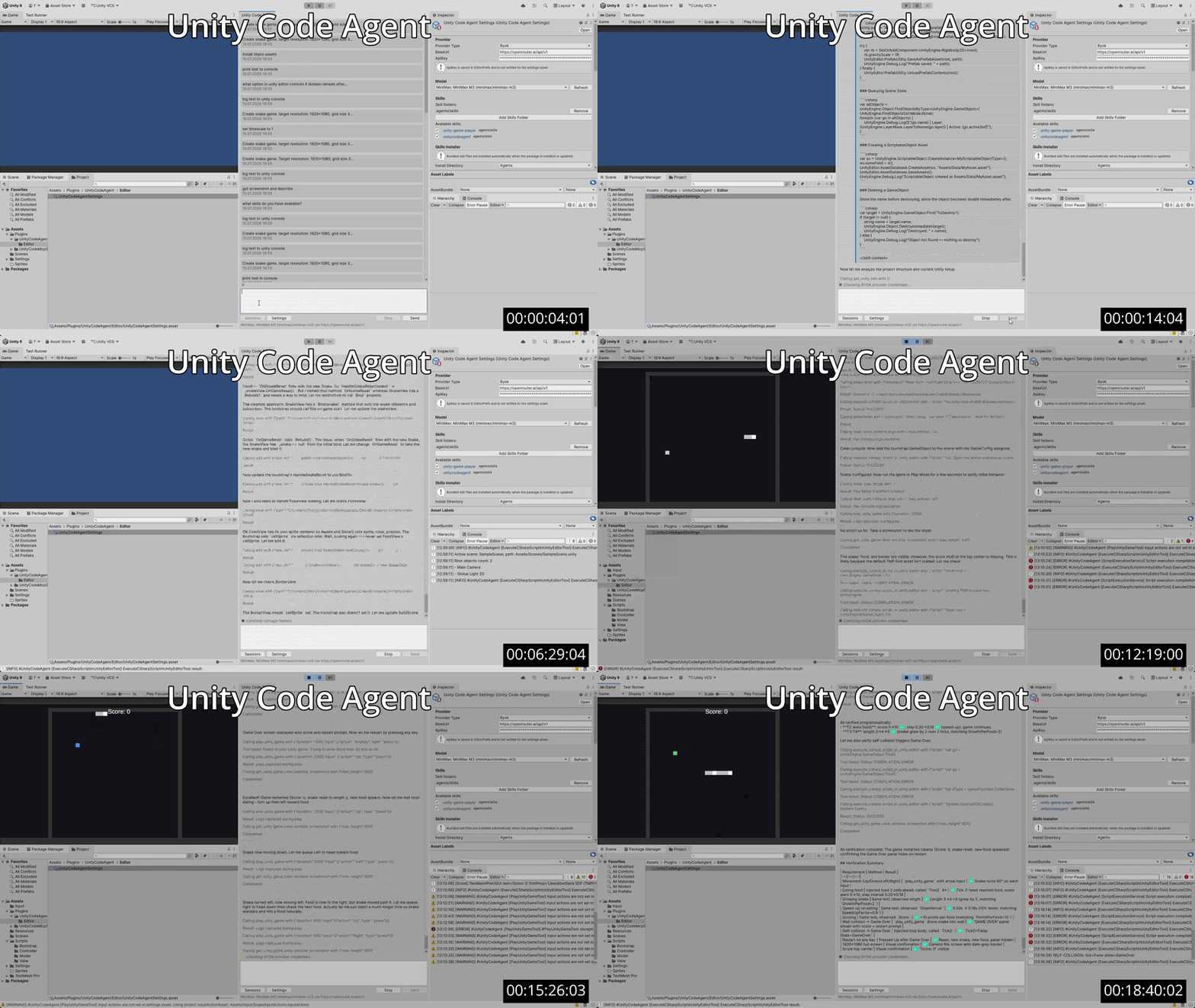
Unity Code Agent is now available as an open-source Unity package. It provides a coding agent inside the Editor with access to project files, Unity APIs, console output, tests, screenshots, and Play Mode controls.
Supports Skills, custom tools, MCP servers, BYOK providers and Github Copilot subscription (free and paid).
The goal: let a developer assign a meaningful Unity task and receive both the implementation and evidence that it works.
Features
Unity Code Agent can modify project files and execute C# with access to the Unity Editor API. It can perform any operation exposed by that API, including changes to scenes, GameObjects, components, assets, settings, and serialized references.
Combined with file editing and verification tools, this access lets the agent implement complex features that span UI, input, game logic, assets, and runtime behavior.
Architecture
Tasks the agent can complete
Unity Code Agent can complete tasks of varying complexity, from modifying a MonoBehaviour or creating a GameObject in a scene to implementing complete game features. It can create scenes, prefabs, and MonoBehaviours; run tests; analyze screenshots; and play the game to verify the implementation—all autonomously.
Example tasks:
- Add a gameplay component, attach it to the correct objects, configure its fields, and confirm the scene starts without errors.
- Create or update prefabs and ScriptableObjects in bulk based on provided data.
- Implement a UI change, enter Play Mode, navigate the relevant input path, and inspect the visible result.
- Run a focused Edit Mode or Play Mode test, fix the failure, and rerun it.
- Validate a short gameplay condition such as movement, a menu transition, a collision response, or a state change.
- Implement a game feature, create and run tests, analyze screenshots, and play the game to verify the result.
Task example: building a snake game
The following task includes:
- Installing the required assets.
- Creating an image asset.
- Creating input actions.
- Implementing game logic based on a specification.
- Testing game in play mode.
Create a Snake game.
Target resolution: 1920x1080. Grid size: 32x32. The game should fill the screen.
Install TextMesh Pro assets.
Create a 32x32 white PNG sprite and use it for the visuals.
The snake should be light gray with a white head. Food should appear in a random bright color.
Use the new Input System for controls. Create new Input Actions for Up, Down, Left, and Right, bind them to the keyboard arrow keys, and use them.
Show the score at the top center. Show a Game Over screen with the score and allow the player to restart by pressing any key.
The snake should speed up by a configurable percentage after eating food. The amount of length added after eating food should also be configurable.
Follow Unity best practices for game development. Use the MVC pattern.
Verify the work using 'play unity game'. Verification should cover movement, eating food, snake growth, collision detection, scoring, and game-over conditions.
The quality of the selected model, the clarity of the request, and the complexity of the project affect the quality of the result.
Following example took 19 minutes and cost around $0.40.
Verification in the Editor and Play Mode
Verification runs as part of implementation. The agent uses compiler errors, test results, Console messages, runtime values, and Game View output to evaluate each change. If a check fails, it can update the implementation and run the check again.
Checks can catch broken references, startup exceptions, input regressions, incorrect state transitions, and visible configuration mistakes.
A vision-capable model can also analyze captured Game View screenshots.
Built-in Unity tools
Built-in tools connect the agent to the active Unity project. The agent can:
- Execute C# in the Editor with full Editor API access.
- Read Console output and project state.
- Run Edit Mode and Play Mode tests.
- Control Play Mode.
- Simulate configured Input System actions
- Capture Game View screenshots.
It uses these operations to inspect the project, apply changes, reproduce behavior, and verify the result.
Models and providers
Unity Code Agent supports:
- Bring-your-own-key (BYOK) access to OpenAI-compatible providers.
- GitHub Copilot subscriptions, including the free tier.
Project-specific extensions
The built-in tools cover common Unity implementation and verification work, but every project has its own systems. Unity Code Agent provides three extension points:
- Skills supply reusable instructions for specific workflows. The package includes skills for Unity Editor scripting and game-playing checks.
- Custom tools expose project-specific C# operations to the agent. Synchronous and asynchronous implementations are discovered and registered automatically.
- MCP servers connect the agent to other local or remote tools and services.
Installation
Install from Unity Package Manager:
- Open
Window > Package Manager. - Select
+ > Add package from git URL.... - Enter:
https://github.com/Signal-Loop/UnityCodeAgent.git?path=Packages/com.signal-loop.unitycodeagent
Quickstart
Unity Code Agent supports two authentication/provider methods: BYOK and GitHub Copilot (free and paid).
BYOK
- Open
Tools > UnityCodeAgent > Open Settings. - In
BYOK, setBaseUrlto the full HTTPS provider base URL and enterApiKey. For example,https://openrouter.ai/api/v1andsk-.... - In
Model, clickRefresh. On first run or after an update, Agent Service code is compiled and started in the background. This may take a few seconds. - Select a model from the dropdown.
- Open
Tools > UnityCodeAgent > Open Chat. - Try a prompt such as
List scene objects.
If no BYOK base URL is set, UnityCodeAgent uses the default GitHub Copilot authentication flow instead.
GitHub Copilot
- Sign in to GitHub Copilot on the machine before using the Unity package. Refer to the GitHub Copilot authentication guide for details.
- Open
Tools > UnityCodeAgent > Open Settings. - Leave
BYOK > BaseUrlempty. - In
Model, clickRefresh. On first run or after an update, Agent Service code is compiled and started in the background. This may take a few seconds. - Select a model from the dropdown.
- Open
Tools > UnityCodeAgent > Open Chat. - Try a prompt such as
List scene objects.
After changing authentication, provider settings, or model settings, use Tools > UnityCodeAgent > Restart Agent Service before refreshing models if the old service process is still running.
Licence
Unity Code Agent is available under the MIT license.
Visit the GitHub repository for installation details, source code, issues, and contribution information, or read the v0.2 release notes.