
July 2026
Unity Code Agent v0.2 Release Notes
The 0.2 release adds visual Game View inspection, clearer response controls, project-specific sessions, safer C# execution, and stronger Unity workflow guidance.
Available now | Open source
The open-source agent inside Unity Editor.
Unity Code Agent is an agent designed for long-running autonomous tasks directly inside the Unity Editor.
It works across project files and live game state, using Unity Editor APIs to complete and verify tasks.
Supports Skills, custom tools, MCP servers, BYOK providers and Github Copilot subscription (free and paid).
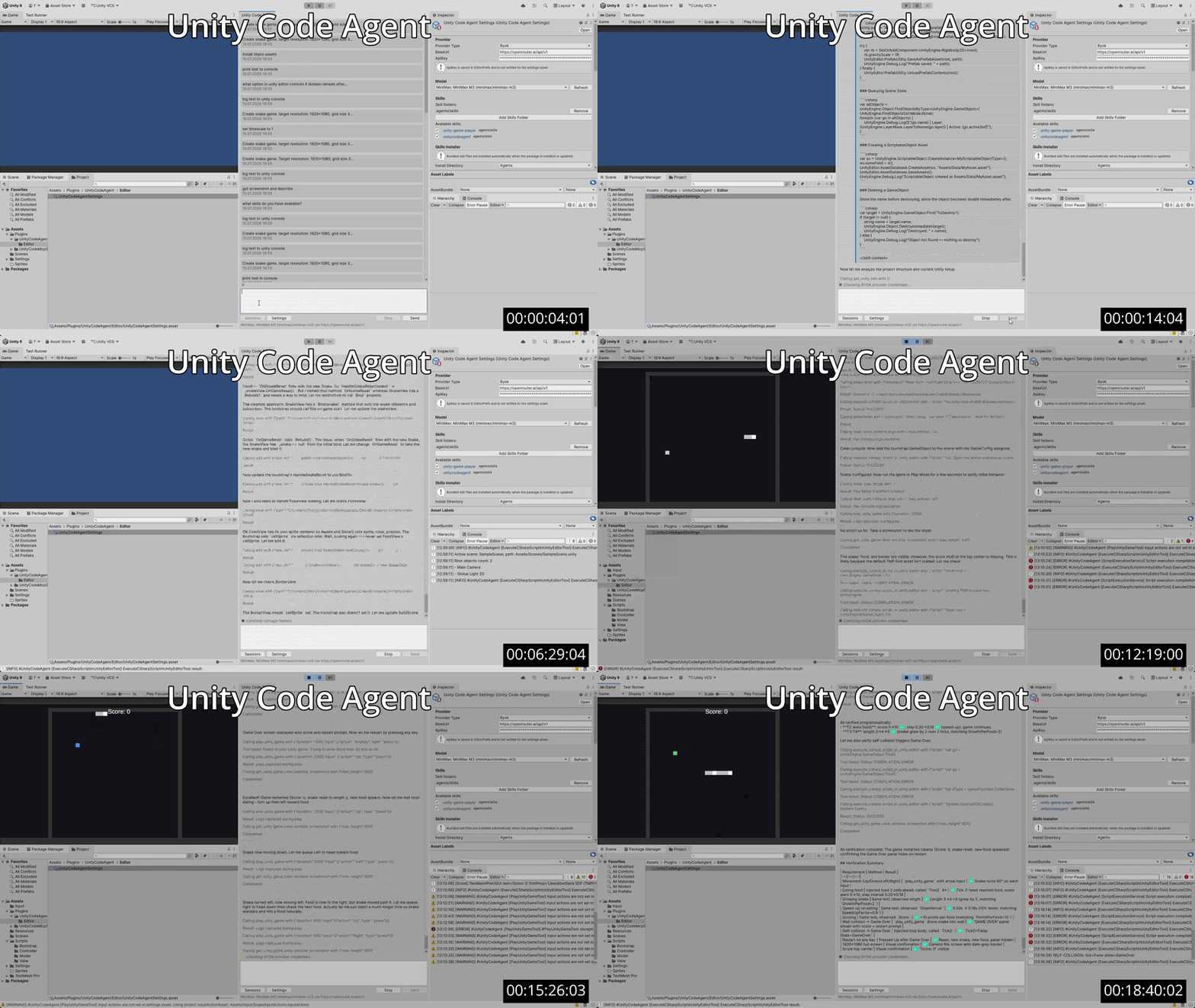
Unity Code Agent can complete focused changes and multi-step features. It can create or update C# code, scenes, prefabs, MonoBehaviours, ScriptableObjects, project configuration, and references, then test and verify the result in the Editor or Play Mode.
Example tasks:
The following task includes:
Create a Snake game. Target resolution: 1920x1080. Grid size: 32x32. The game should fill the screen.
Install TextMesh Pro assets.
Create a 32x32 white PNG sprite and use it for the visuals.
The snake should be light gray with a white head. Food should appear in a random bright color.
Use the new Input System for controls. Create new Input Actions for Up, Down, Left, and Right, bind them to the keyboard arrow keys, and use them.
Show the score at the top center. Show a Game Over screen with the score and allow the player to restart by pressing any key.
The snake should speed up by a configurable percentage after eating food. The amount of length added after eating food should also be configurable.
Follow Unity best practices for game development. Use the MVC pattern.
Verify the work using 'play unity game'. Verification should cover movement, eating food, snake growth, collision detection, scoring, and game-over conditions.
Results depend on model capability, request clarity, and project complexity.
Following example took 19 minutes and cost around $0.40.
Verification runs as part of implementation. The agent evaluates compiler errors, test results, Console messages, runtime values, and Game View output. If a check fails, it can update the implementation and run the check again.
Checks can catch broken references, startup exceptions, input regressions, incorrect state transitions, and visible configuration mistakes.
Vision-capable models can analyze captured Game View screenshots.
Built-in tools connect the agent to the active Unity project. The agent can execute C# with full Editor API access, read Console output and project state, run Edit Mode and Play Mode tests, control Play Mode, simulate configured Input System actions, and capture Game View screenshots. These operations support project inspection, implementation, reproduction, and verification.
The built-in tools cover common Unity implementation and verification work. Additionally, agent capabilities can be improved through three extension points:
Unity Code Agent includes the agent runtime, Editor chat, sessions, provider configuration, skills, extension points, and Unity tools in one package.
Unity Code MCP Server exposes Unity tools to an external MCP-compatible agent. It complements Unity Code Agent by supporting developers who prefer to keep their existing agent and coding environment.
July 2026
The 0.2 release adds visual Game View inspection, clearer response controls, project-specific sessions, safer C# execution, and stronger Unity workflow guidance.
Install from Unity Package Manager:
Window > Package Manager.+ > Add package from git URL....https://github.com/Signal-Loop/UnityCodeAgent.git?path=Packages/com.signal-loop.unitycodeagentUnity Code Agent supports two authentication/provider methods: BYOK and GitHub Copilot (free and paid).
Tools > UnityCodeAgent > Open Settings.
BYOK, set BaseUrl to the full HTTPS provider
base URL and enter ApiKey. For example,
https://openrouter.ai/api/v1 and sk-....
Model, click Refresh. On first run or
after an update, Agent Service code is compiled and started in the
background. This may take a few seconds.
Tools > UnityCodeAgent > Open Chat.List scene objects.If no BYOK base URL is set, UnityCodeAgent uses the default GitHub Copilot authentication flow instead.
Tools > UnityCodeAgent > Open Settings.
BYOK > BaseUrl empty.Model, click Refresh. On first run or
after an update, Agent Service code is compiled and started in the
background. This may take a few seconds.
Tools > UnityCodeAgent > Open Chat.List scene objects.
After changing authentication, provider settings, or model settings,
use
Tools > UnityCodeAgent > Restart Agent Service before
refreshing models if the old service process is still running.
Unity Code Agent executes AI-generated C# with Unity Editor privileges. Use it at your own risk. To the fullest extent permitted by law, Signal Loop disclaims liability for any changes, damage, or data loss resulting from its use. You are responsible for securing your environment.
Open GitHub repositoryRead the product introductionRead the v0.2 release notes