Available Now

A direct bridge between your AI agent and Unity.

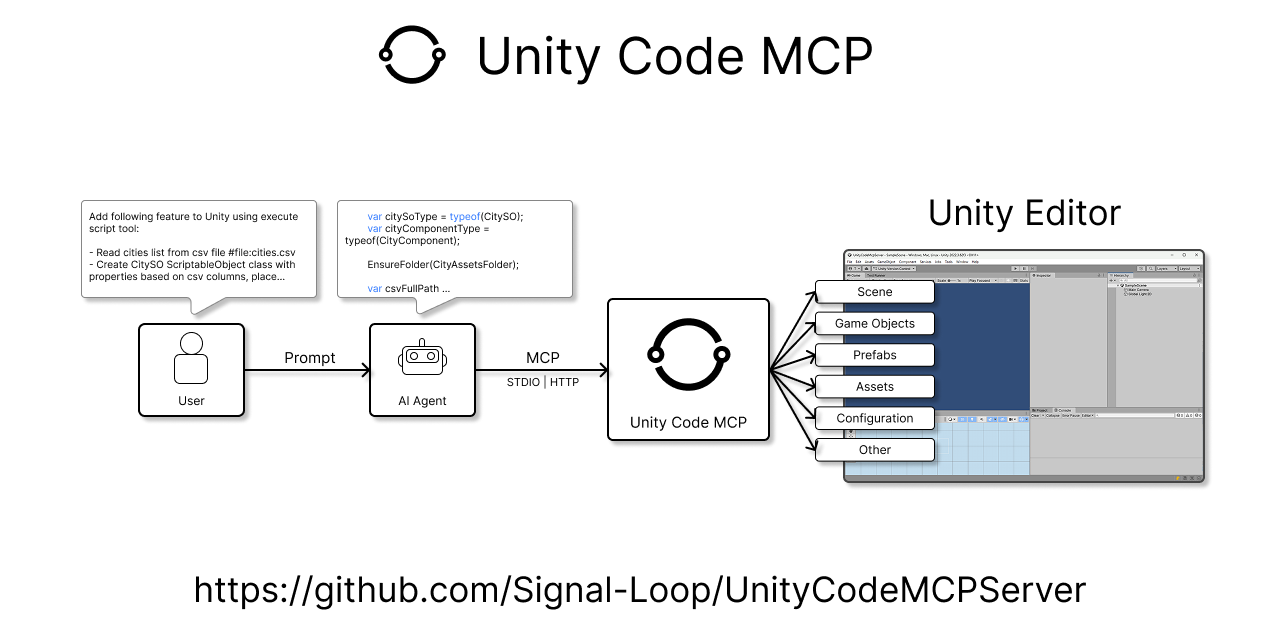
Unity Code MCP Server connects AI agents directly to the Unity Editor through MCP so they can execute scripts, inspect logs, run tests, reuse Favourite Scripts, and play the game by emulating player input.

Unity Code MCP Server driving Unity Editor workflows

Overview

Instead of limiting AI to static code suggestions, Unity Code MCP Server lets agents perform real Unity work. Generated C# scripts can create and modify scenes, manage assets, configure components, inspect project state, and trigger tests using the same editor surface a developer would use manually.

Recent releases expanded that workflow in two important directions. Version 0.2 added Favourite Scripts, giving teams a reusable in-editor library for repeated automation tasks. Version 0.3 added play mode automation with play_unity_game, so agents can validate gameplay loops with inputs, screenshots, and logs rather than stopping at editor configuration.

Core automation

Execute C# scripts

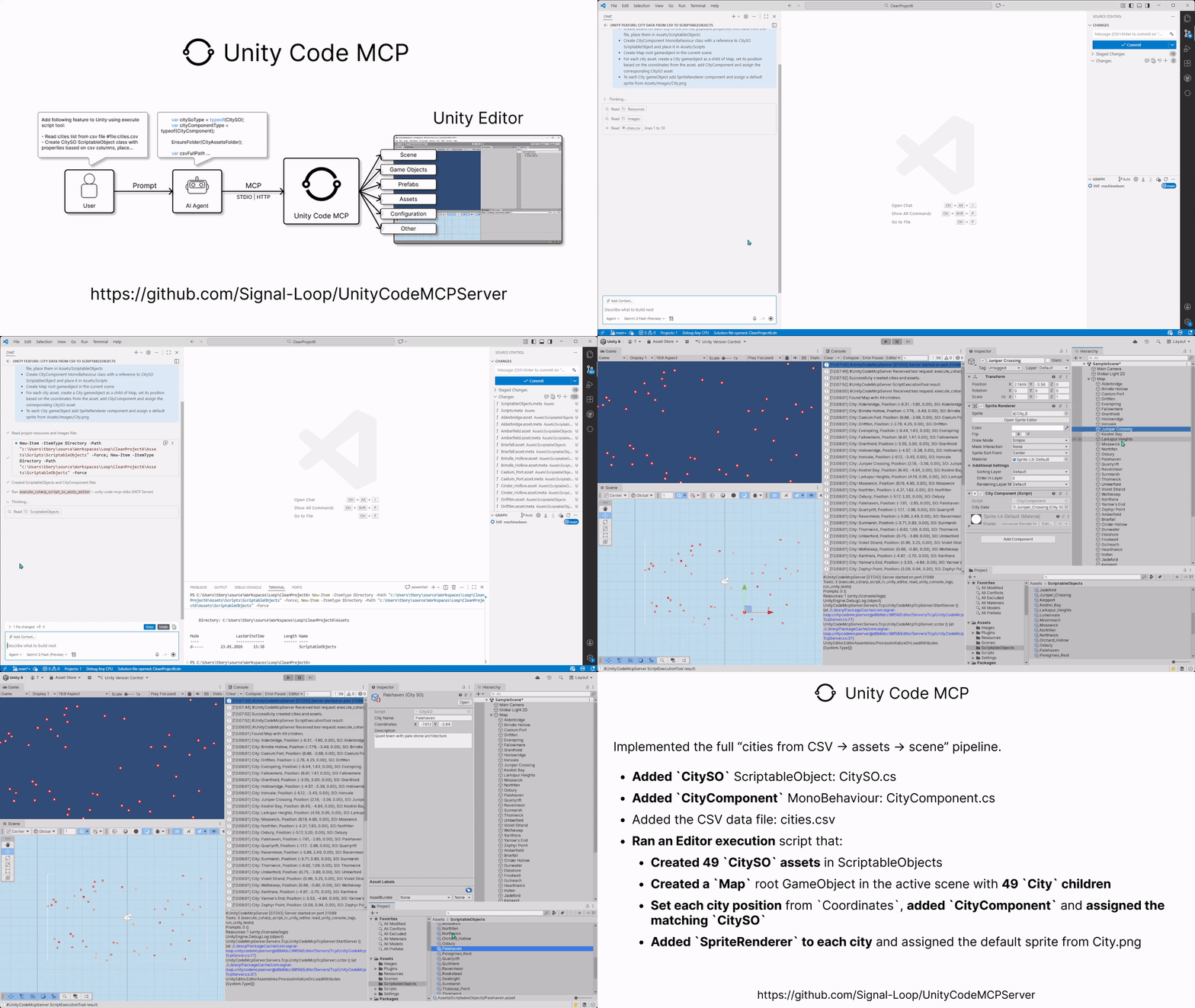
Unity Code MCP Server is built around direct editor-side script execution. Agents can generate and run C# against the Unity Editor so they can create scenes, modify assets, configure components, inspect project state, and trigger tests using the same APIs a developer would use manually.

The 0.2 release also formalized this workflow with a bundled script-execution skill for AI workspaces, making it easier for agents to choose the right tool, follow safe scripting patterns, and stay aligned with Unity-specific execution rules.

  • Direct access to Unity Editor APIs through generated C# scripts.
  • Useful for scene setup, project configuration, asset workflows, and validation tasks.
  • Backed by bundled guidance so agent workflows are easier to reuse across teams.
Unity Code MCP Server execute scripts workflow in Unity

Gameplay automation

Play Unity game

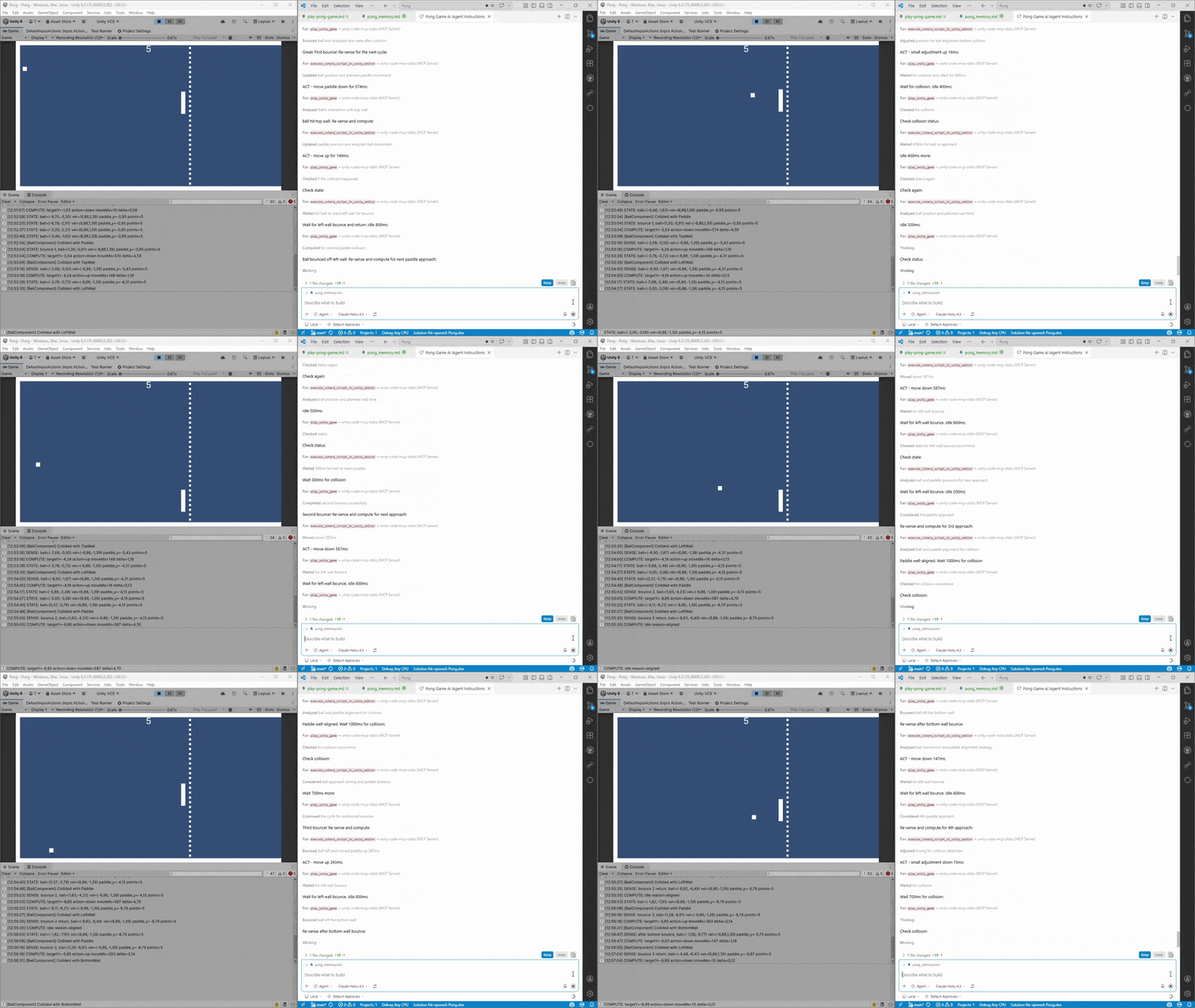
Version 0.3 expanded the server from editor automation into guided gameplay validation. With enter and exit play mode tools plus play_unity_game, agents can move into Play Mode, simulate Input System actions, collect logs, and capture screenshots without leaving the Unity workflow.

That makes it possible to run closed-loop checks where the agent observes the running game, performs an action, and evaluates the outcome instead of stopping at editor setup or static code changes.

  • Use play_unity_game to press or hold input actions during runtime.
  • Capture screenshots and gameplay logs as part of the validation loop.
  • Pair with safer scene restoration and compilation guards from 0.3 for more reliable runs.
Play Unity game workflow showing gameplay automation output

Reusable workflows

Reuse C# scripts with Favourite Scripts

Favourite Scripts, introduced in 0.2, turns one-off automation into a reusable editor tool. Developers can save, load, edit, and rerun named C# scripts from a dedicated Unity window instead of asking an agent to regenerate similar code every time.

Because saved scripts run through the same execution path as the MCP tooling, teams can build up a practical library of repeatable workflows for setup, debugging, and project-specific editor operations.

  • Store scripts in a project-local JSON file so useful routines persist across sessions.
  • Reload and rerun saved automation without leaving the Unity Editor.
  • Reduce repetition by promoting successful agent output into a stable workflow library.
Favourite Scripts window inside Unity for reusable automation scripts

Release Highlights

What changed in 0.2 and 0.3

Version 0.3

Play Mode automation with play_unity_game

The 0.3 release extends the server from editor automation into gameplay validation. Agents can enter Play Mode, drive gameplay actions, collect logs, capture screenshots, and exit cleanly, making real playtesting part of the same loop as scene setup and code generation.

  • `enter_play_mode`, `play_unity_game`, and `exit_play_mode` support closed-loop gameplay automation.
  • Input System actions, screenshots, and gameplay logs give agents observable feedback.
  • Compilation guards and safer state restoration make automation more reliable in active projects.

Read the full v0.3 release notes

Version 0.2

Favourite Scripts for repeatable editor work

Favourite Scripts adds a dedicated Unity window for saving, loading, editing, and rerunning C# automation scripts directly inside the editor. That turns one-off agent output into a reusable workflow library for setup tasks, debugging routines, and project-specific automation.

  • Store named scripts in project-local JSON so common tasks stay available between sessions.
  • Run saved scripts through the same execution pipeline used by the MCP server.
  • Reduce dependence on regenerating similar scripts for repetitive editor operations.

Read the full v0.2 release notes

Built-in Tools

Core capabilities available to MCP clients

Back to products overview
Tool What it enables
execute_csharp_script Execute generated C# scripts with full Unity Editor API access for scenes, assets, components, and configuration.
read_unity_console_logs Read live Unity Console output from the current project so agents can debug against what the editor is actually showing.
run_unity_tests Run EditMode or PlayMode tests and bring the results back into the agent workflow.
enter_play_mode Move the editor safely into Play Mode as part of a gameplay automation loop.
play_unity_game Automate gameplay with input actions, screenshots, and logs so agents can validate in-game behavior instead of stopping at editor setup.
exit_play_mode Return the editor to a stable editing state after gameplay automation or testing.

Requirements

  • Unity 2022.3 LTS or higher
  • UniTask for async and editor integration support
  • Unity Input System for gameplay automation in 0.3 and later
  • uv for STDIO transport workflows

Security and Operations

Unity Code MCP Server executes AI-generated C# with Unity Editor privileges. Review generated scripts before execution, especially in shared or production-adjacent projects.

For higher-risk workflows, run Unity in an isolated environment and treat play mode automation the same way you would any other privileged test harness.

Move from suggestions to execution inside Unity.

Use Unity Code MCP Server when you need AI agents to do real work in your Unity project: automate editor tasks, reuse Favourite Scripts, and validate gameplay flows with Play Mode tooling.